
This documentation is in Xlegder as a Markdown too. This documentation should give you some background idea of how this works and what end users need to do to complete the setup. This is a self managed service.
--------------------------------
Xledger supports Open Banking integration for importing bank statements and financial information. This procedure describes how to configure Xledger for the integration and the processes behind it.
Note:Currently the integration via open banking only supports UK bank with sort code and account number, i.e. Paypal account, foreign bank account, non-UK bank accounts are not supported. If the bank does not show in the open banking search screen, the bank is not currently supported by open banking.
To connect a bank account for statement import
Note:Users must use one of the following role to do the setup: Domain administrator, Chief accountant, Chief Accountant with Payroll.
- Go toBank > Setup >Bank and Payment Integrations
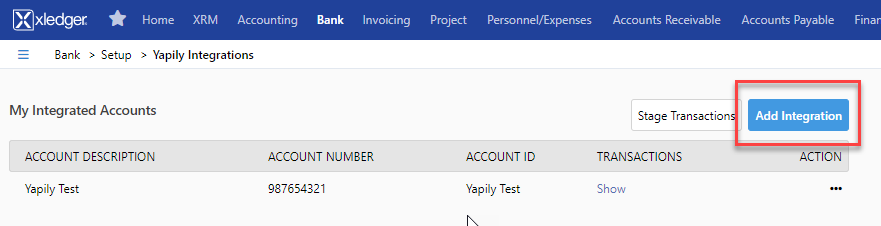
- Click onAdd Integration(screenshot 1)
- Click on Yapily (screenshot 2)
- Search and Select the bank to integrate with and follow through the integration instructions from the bank (screenshot 3)
The SafeConnect information screen will display legal information about the data that will be shared to Xledger at one stage, depending on your bank. (screenshot 4) - Click onNextto proceed
Xledger should direct the user to bank's login portal where users will be asked to login and approve the accounts that need to be set up for integration. When the accounts are approved, the bank portal should redirect user back to Xledger integration screen and the bank accounts integrated should show in the view inBank > Setup >Bank and Payment Integrations
Note:Bank accounts must be set up in Xledger prior to setting up the integration. The integration process will check for sort code and account number from integration source to Xledger's bank account setup for matching. If they don't match, the set up will fail. In some cases, IBAN numbers are also checked for matching, an example is Starling Bank. If the integration setup process fails, the user should check and verify the bank setup details in Xlegder.
Note:If during the setup, the user is gets a message describing that the user is not permitted to complete the setup, or additional permission is needed, please contact the bank. It is likely that bank needs to open up access for using open banking and some banks have this function switched off by default.
To retrieve bank statements
Once the integration has been successfully set up, Xledger will automatically import statements from the previous day every morning. The scheduled time for this process starts at 5 AM and statements should be made available in Xledger after 7 AM in customer's entities.
Statement import process can also be triggered manually if this was required.
- Go toBank > Setup >Bank and Payment Integrations
- Click onStage Transactions(screenshot 5)
- Enter the date range required for the statements
- Click onRun Process
Note:Open Banking regulations state that the data sharing consent needs to be renewed by the end user every 90 days. Xledger will develop a function to remind users that the integration setup is about to expire. Until this is developed, users will need to delete the current integration and start the setup process again to re-establish the integration.
Note:Specific suggestions for customers that hasBarclaysas bank when setting up integration are that we recommend:
- Using Microsoft Edge as browswer
- Adding Barclays as a trusted site in Edge
- Adding an extension in Edge forWeb Signer for Barclays
- Keeping Esigner software up to date
Screenshot 1
Screenshot 2
Screenshot 3
Screenshot 4
Screenshot 5